
A conversation can start with a simple hello. Bullsplit Live brings one-to-one video conversations to your browser: sign in, set up a short profile, and start matching with another available participant.
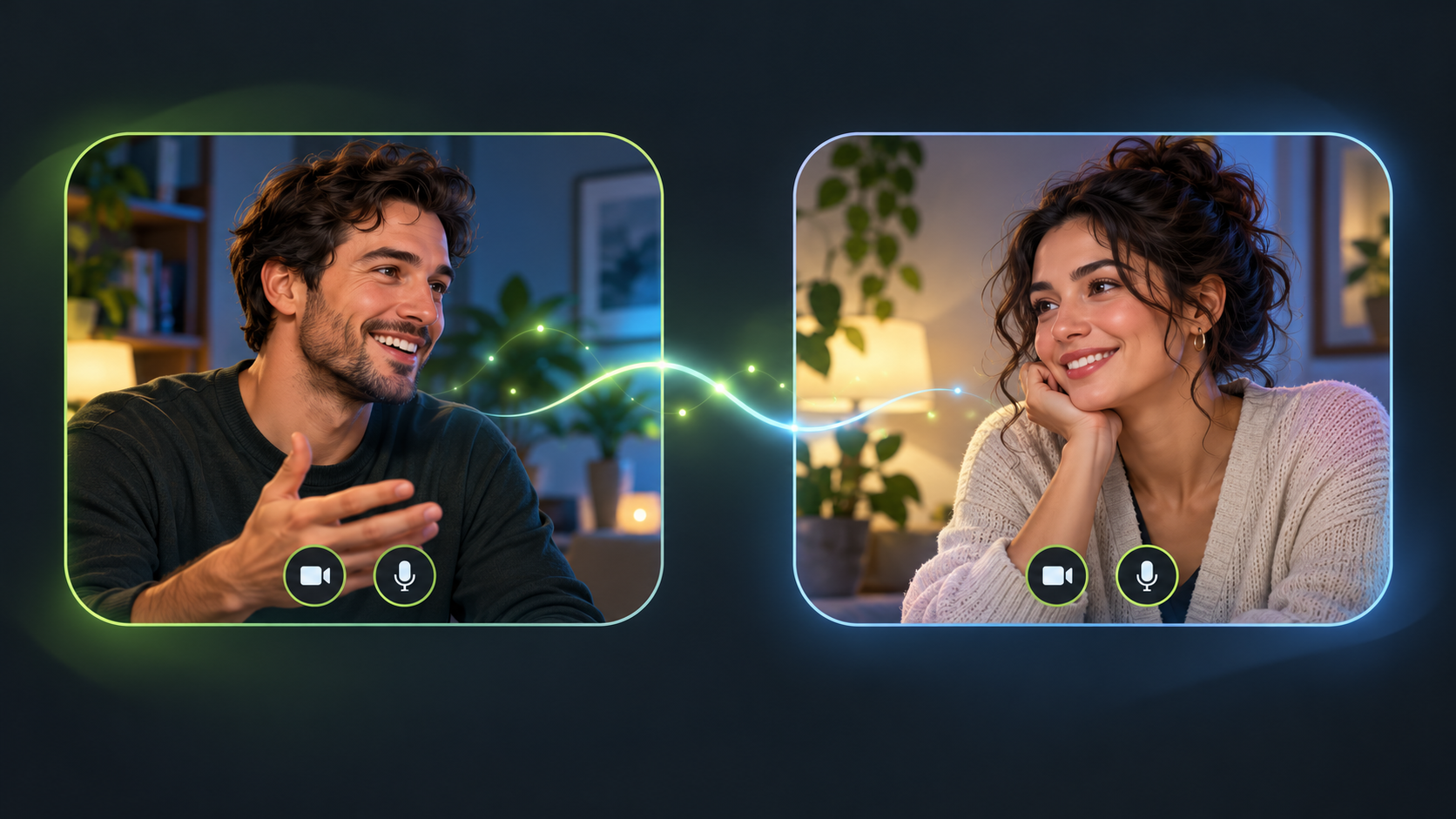
It is designed for adults aged 18 and older who want to meet someone new without building a feed or collecting followers. You decide when to start, when to move to another conversation, and when to leave.
Ready to try it? Open Bullsplit Live. Read the community rules before starting, and keep personal information private.
What can you do with Bullsplit Live?
- Have a one-to-one video conversation. Random matching connects you with an available participant rather than a public audience.
- Choose guest or Google sign-in. Guest access lets you begin without Google authentication. A guest identity is still an account used to operate the service.
- Control your camera and microphone. Preview your camera before matching, switch your camera or microphone off, and flip the camera where supported.
- Move on at your own pace. Use Next person to look for another participant or Stop to end matching.
- See an online account count. The Online tab shows aggregate foreground activity across web and Android, with generic icons rather than a public profile directory.
- Use safety and account controls. Report or block a participant, edit your profile, or delete your account from the profile settings.
How to start your first browser conversation
- Open the web app. Visit bullsplit.com/live/ in a browser with camera and microphone support.
- Choose how to sign in. Select Continue as guest or use the Google sign-in option.
- Complete your profile. Enter an alias, your age, a gender selection, and your country and city or broad region. You must be at least 18 and accept the community rules.
- Enable camera and microphone access. Review your private preview and choose your media settings. Camera preview alone does not start a conversation.
- Tap Start chatting. The service looks for another available participant. A match depends on who is online and ready to chat; an immediate connection is not guaranteed.
- Use the controls during the call. Stop when you want to leave, or choose Next person to start looking for someone else.
A clearer view while you talk
Once a video call connects, Bullsplit Live switches to an expanded video view after a short delay. Tap or click the video to reveal the call controls. The web app expands within the browser viewport, so your browser's own toolbar may still be visible.
The call stops when you switch away or put the app or browser in the background. Keep the page in the foreground while talking.
What the Online tab means
The Online tab counts signed-in accounts that recently had Bullsplit Live open in the foreground. It includes your own account and uses anonymous icons. It does not show individual profiles, reveal locations, or confirm that someone is available for a call.
One person can have different guest identities, so the number should not be read as a verified count of distinct people. An account can also disappear from the count after a lost connection.
Understand privacy before you connect
Your matched participant receives your alias, declared age, manually entered country and city or region, and the camera and microphone media you enable. Choose a broad region rather than an exact address. Bullsplit Live does not request GPS location.
The service does not record calls or capture call screenshots. That does not prevent another participant from using external recording tools, even though recording others is prohibited by the community rules. Avoid sharing phone numbers, financial information, passwords, identity documents or other sensitive details.
LiveKit Cloud transports call media and connection information, and Google handles authentication when you select Google sign-in. The service retains some account, activity, call-allocation and safety metadata. For the details, read the Bullsplit Live privacy policy.
Respectful conversations are part of the agreement
Bullsplit Live prohibits nudity, sexual behaviour, exploitation, harassment, hate, threats, violence, scams and recording other participants. Age is self-declared; the service does not independently verify it.
If something feels wrong, you can stop the call. Use Report for a suspected rule violation, including underage participation or sexual content. Reporting ends that conversation and blocks the participant. Moderation tools help respond to concerns, but cannot guarantee another person's conduct or prevent every repeat offender.
Read the child safety standards for reporting and enforcement information. For immediate danger, contact the appropriate emergency service rather than relying on an app report.
Before you start: a quick checklist
- Use a stable connection and check that your camera and microphone are available.
- Close another app or tab if it is already using your camera.
- Choose a quiet space and keep private documents or identifying information out of view.
- Keep Bullsplit Live in the foreground during the call.
- Use Stop, Report or Block whenever you need to.
Frequently asked questions
Do I need a Google account?
No. The web app also offers guest access. You still need to complete the adult profile and accept the community rules.
Will I connect to someone immediately?
Not necessarily. Matching depends on another participant being available and on network and device conditions. The online count is not a queue of people ready to accept a call.
Can I delete my account?
Yes. Open your profile settings, select Delete account, and confirm. This revokes sessions and anonymizes profile fields. Limited enforcement or safety records may remain as explained in the account-deletion section.
Where can I get help?
For Bullsplit Live support, email hello@bullsplit.com and include Bullsplit Live in the subject. Do not include passwords, authentication tokens or recordings in a support request.
Start with a respectful hello. Visit Bullsplit Live, review the rules, and begin when you are ready.